NEW — AI-POWERED
AI That Doesn't Just Read Your Logs —
It Fixes Your Bugs
From "here's your error" to "here's your fix" — Shipbook reads your code, finds the bug, and opens the pull request.
Code-Aware Analysis
For Your Alerts & Issues
Connect your GitHub repository and Shipbook's AI reads the code behind your stack traces. Alerts arrive with the root cause, the exact file and line, and a suggested code fix — and one click opens the pull request in your repository.
Learn more View DocsLogchat
For Your Entire Team
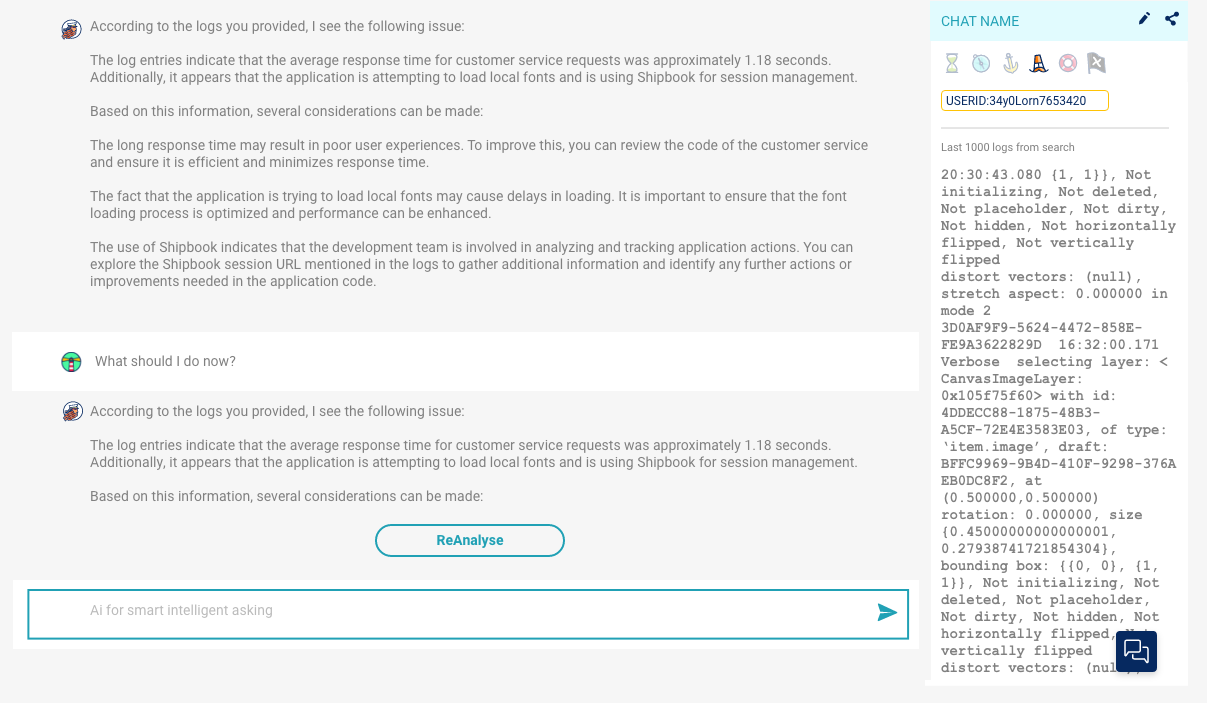
AI-powered chat that translates app logs into plain language. Product Managers, QA, and Support can understand issues without reading code. Developers uncover hidden patterns across sessions.
AI That Reads Your Code
Logs tell you what happened. Your code explains why. Connect the two, and Shipbook's AI closes the loop — from alert fired, to root cause found, to pull request open. You step in only to approve.
Connect GitHub
Install the Shipbook GitHub App and map each app to the repository and branch that holds its code. You choose exactly which repositories Shipbook can see.
AI Reads the Code
When an issue spikes, the AI follows the stack trace into your repository — the crashing line, the callers, the related symbols. Files are read on demand; nothing is cloned or stored.
The Fix Arrives With the Alert
The alert email, Slack message, and webhook include the root cause, a link to the exact line on GitHub, and a suggested fix — even when the change spans multiple files.
One Click Opens the PR
Click Create pull request and Shipbook opens the fix as a PR on its own branch in your repository. You review, your CI runs, you merge.
On every Loglytics issue
Open any issue and run the analysis on demand: summary, root cause, where it is in the code, and per-file suggested changes — then open the fix as a pull request in one click.
In every Logchat answer
Logchat looks up the actual source behind a stack trace before answering — so "what broke?" gets answered with your code, not a guess. And when the fix is clear, create the pull request right from the chat.
BRING YOUR OWN AI
Prefer your own agent? Connect it via MCP
Claude, Cursor, VS Code, Codex, and Antigravity can query your Shipbook logs directly from your editor — and alert webhooks can wake an agent to investigate on its own.




Frequently Asked Questions
Get the Fix With the Alert.
Connect your repository and let Shipbook's AI turn production issues into pull requests.