
Android Logging in Kotlin: Logcat, Log Levels, Device Logs and Remote Logging
On your desk, Android logging feels solved. You call Log.d, the line shows up in Logcat, and you move on.
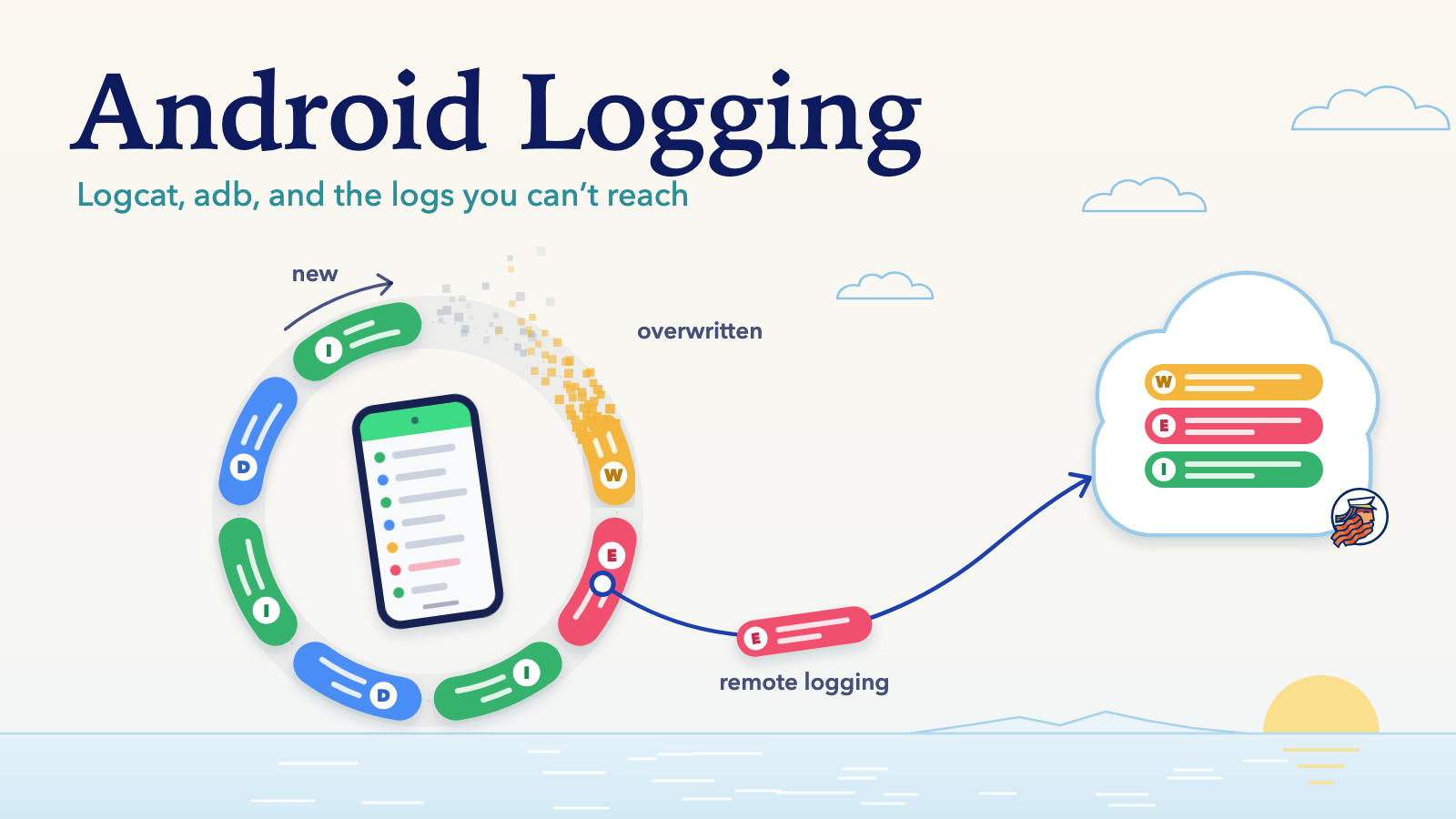
Then a user reports a bug you can't reproduce, and you find out what Android logging actually is: a set of ring buffers inside one phone. They're small, they overwrite themselves, and since Android 4.1 no other app on that phone may read your app's lines. The log that explains the bug exists. It's just in the one place you can't reach.
This guide covers every place Android logs live: writing them, filtering them in Android Studio, pulling them off a device, the system and event buffers, what to do in release builds, and how to get them from your users' phones.
Writing Logs: the Log Class and Its Levels
Everything starts with android.util.Log. Each call takes a tag — a short string that says where the line came from — and a message:
private const val TAG = "CheckoutViewModel"

Log.v(TAG, "Recomposing cart, ${items.size} items")   // Verbose
Log.d(TAG, "Applying coupon $code")                     // Debug
Log.i(TAG, "Order $orderId submitted")                  // Info
Log.w(TAG, "Payment retry ${attempt + 1} of 3")         // Warning
Log.e(TAG, "Payment failed", exception)                 // Error, with the stack trace
Log.wtf(TAG, "Cart total is negative: $total")          // "What a Terrible Failure"
From least to most severe, the levels are Verbose, Debug, Info, Warning and Error, plus wtf for conditions that should never happen. Passing a Throwable as the last argument prints its full stack trace under the message, which is almost always what you want in a catch block.
One detail is easy to miss: every log call costs something, even when no one reads it. In this line, Kotlin first builds the whole message — it walks the cart and joins every item into one string — and only then calls Log.d:
Log.d(TAG, "Cart: ${cart.items.joinToString()}")
That work runs on every user's phone, in every build. If your logs only go to Logcat, no one will ever read a debug line from a user's phone, and the section on release builds below shows how to remove these calls before you ship.
Choosing the right level is a topic of its own. I wrote about it in Android Log Levels.
Logcat in Android Studio
Logcat (View › Tool Windows › Logcat) shows the log of the connected device or emulator. That log holds Android's own lines and every other app's too, so Logcat starts with the filter package:mine: only the lines of the apps in your open project.
The filter field takes these keys:
| Key | Shows | Example |
|---|---|---|
package: | Lines from an app (mine = your project's apps) | package:mine |
tag: | Lines with a tag | tag:CheckoutViewModel |
level: | Lines at a level and above | level:WARN |
message: | Lines whose message contains a text | message:order |
process: | Lines from a process | process:com.example.shop |
is: | Crashes, or anything that looks like a stack trace | is:crash, is:stacktrace |
age: | Lines from the last seconds, minutes, hours or days | age:5m |
Put several keys in the field to combine them: package:mine level:WARN. A - before a key excludes (-tag:OkHttp), and a ~ after it takes a regular expression (tag~:Checkout.*).
Reading Logs from a Device with adb
Android Studio isn't always there — on a CI machine, on a tester's laptop, or when the device belongs to someone else. The same logs are one adb command away once USB debugging is on:
# Only your app's lines (Android 7.0+)
adb logcat --pid=$(adb shell pidof -s com.example.shop)

# Only the tags you care about; *:S silences everything else
adb logcat "CheckoutViewModel:D OkHttp:I *:S"

# Warnings and errors from everything
adb logcat "*:W"

# Dump what's in the buffers to a file and exit
adb logcat -d > android-log.txt

# Clear the buffers before reproducing a bug
adb logcat -c
Quote the filter specs: * means something to zsh and bash. The default output format, threadtime, already includes the date, time, process and thread IDs; -v changes it (-v time, -v color, -v UTC).
When a tester reports a bug, ask for a bug report, not a screenshot. adb bugreport bugreport.zip collects the logs of all buffers, system dumps and recent ANR traces into one zip, and so does Developer options › Take bug report on the phone itself, which can share the file without a computer. It's a heavy file, but it's the closest thing Android has to a black box.
System Logs, Event Logs and the Other Buffers
Logcat isn't one log. The logd daemon keeps several ring buffers, and adb logcat reads the main, system and crash buffers by default:
| Buffer | What's in it | Read it with |
|---|---|---|
main | App logs, including your Log calls | adb logcat -b main |
system | Messages from the Android OS | adb logcat -b system |
crash | Crash logs | adb logcat -b crash |
events | Binary system events, decoded for display | adb logcat -b events |
radio | Radio and telephony | adb logcat -b radio |
all | Everything | adb logcat -b all |
The event log is the one people search for and rarely find. It records system events such as activities starting, processes dying and the battery level changing, in a compact binary format. When you need to know what the OS did to your app — killed it in the background, restarted it — adb logcat -b events is often faster than reading the system log.
What you can't do is read any of this from inside a normal app. Since Android 4.1 (Jelly Bean), the READ_LOGS permission is reserved for system apps, so an app can only read its own lines. The system log, the event log and other apps' lines are visible to adb and to the OS. That's good for privacy. For debugging production it means that the device's own logs are useless to you unless the user plugs the phone into your computer.
Writing your own log file doesn't change that picture. A file in your app's storage survives restarts and overflowing buffers, but it's still on the user's phone. You've moved the problem from a ring buffer to a folder.
Logging in Release Builds with R8
Log doesn't know about build types: a Log.v in your release APK still runs on every user's phone and writes to a Logcat that nobody reads. If your logs only go to Logcat, have R8 delete them at build time. Add this to proguard-rules.pro:
-assumenosideeffects class android.util.Log {
    public static int v(...);
    public static int d(...);
}
R8 then removes every Log.v and Log.d from the release build, together with the strings they would have built. It only works when R8 optimizes — with proguard-android-optimize.txt in your proguardFiles — so check the release APK once to be sure.
Notice what that does, though: the release build is quieter, so the lines that would explain a production bug don't exist anywhere. That's the right trade only while nobody can read them.
Timber: Deciding Where Each Log Goes
Timber is a small open-source logging library by Jake Wharton, and one of the most used in Android apps. You call it instead of Log — Timber.d(...) instead of Log.d(TAG, ...) — and it fills in the tag for you from the class that logged.
What Timber adds is a choice of where the lines go. At startup you "plant" trees: each tree receives every line and decides what to do with it — write it to Logcat, send it somewhere, or drop it. Your code only ever calls Timber, so you change where logs go in one place instead of at every call. A common setup plants Timber's DebugTree, which writes to Logcat, only in debug builds:
class ShopApp : Application() {
    override fun onCreate() {
        super.onCreate()
        if (BuildConfig.DEBUG) {
            Timber.plant(Timber.DebugTree())
        }
    }
}

// Anywhere in the app; the tag is the calling class
Timber.d("Applying coupon %s", code)
Timber.e(exception, "Payment failed")
Planting DebugTree only in debug builds is one way to keep logs out of a release build, but R8 does it more efficiently. A Timber call with no tree still runs, and its message is still built; a call R8 removed isn't in the APK at all.
Android Remote Logging: Logs from Your Users' Phones
Remote logging changes the picture. An SDK in your app collects the log lines it writes and uploads them, so you can read a user's session after the fact.
That's why the R8 advice above is only for logs that go to Logcat alone: nobody can read those on a user's phone, so removing them costs nothing. Logs that are uploaded can be read, and when a user reports a bug they are often the only record of what happened. Keep them in release builds — every level, Debug and Verbose included.
To set it up with Shipbook, add the SDK to your module's build.gradle.kts:
implementation("io.shipbook:shipbooksdk:2.+")
Start it in your Application:
import io.shipbook.shipbooksdk.ShipBook

class ShopApp : Application() {
    override fun onCreate() {
        super.onCreate()
        ShipBook.start(this, "YOUR_APP_ID", "YOUR_APP_KEY")
    }
}
Then change one import. Shipbook's Log has the same methods as Android's, so the rest of your code stays the same:
import io.shipbook.shipbooksdk.Log   // instead of android.util.Log

Log.e(TAG, "Payment failed", exception)
Log.i(TAG, "Order $orderId submitted")
The lines still show in Logcat while you develop, and they're also uploaded and grouped by user and session in the Shipbook console. If your code already uses Timber, plant a Shipbook tree — the Timber integration is a few lines. Crashes are captured too, with the log lines that led up to them. The R8 rule above names android.util.Log, so it leaves these calls in place.
You still decide what's sent, in the Shipbook console and without shipping a new build — see the configuration guide. Android remote logging with Shipbook shows what the console looks like, and the Android integration docs cover the full API.
Where Each Log Line Ends Up
Every Android log line lands in one of four places. In Logcat while you develop, where filters make it readable. In a device's ring buffers, where adb and a bug report can reach it until newer lines push it out. Nowhere, in a release build that stripped it. Or on a server, where you can read it next week for the one user whose checkout broke.
The first three are free and built in, and you should master them. Only the fourth one helps with bugs you can't reproduce on your own phone.
Shipbook is free to start, with up to 100,000 logs a day: create an account, add the SDK, and the next bug report from a user comes with the logs from their phone.